1. Open the photo in MojiMask
Choose a photo from your photo library. MojiMask uses photo library access only to load the photo you pick and to save the result.
Sharing a group photo or a street shot usually means hiding a few people first. With MojiMask every face starts covered, so you only choose who to show — and nobody gets left uncovered by mistake.

Choose a photo from your photo library. MojiMask uses photo library access only to load the photo you pick and to save the result.
MojiMask finds every face in the picture and covers it with an emoji before you do anything. In a crowded group shot, that means nobody is missed.
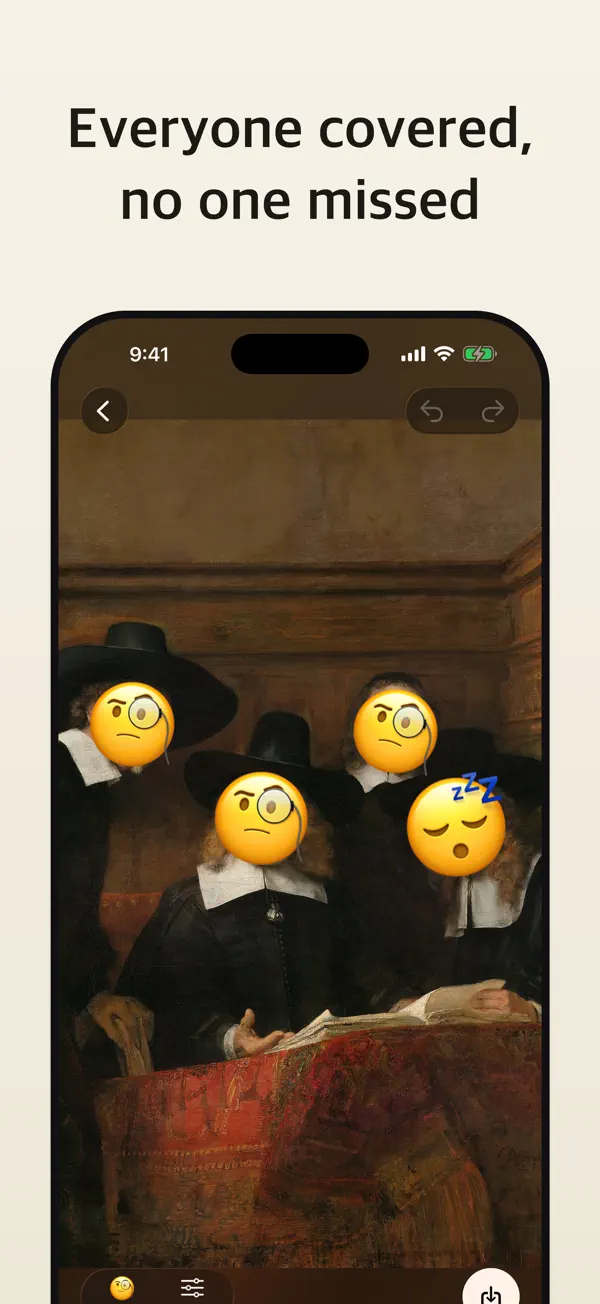
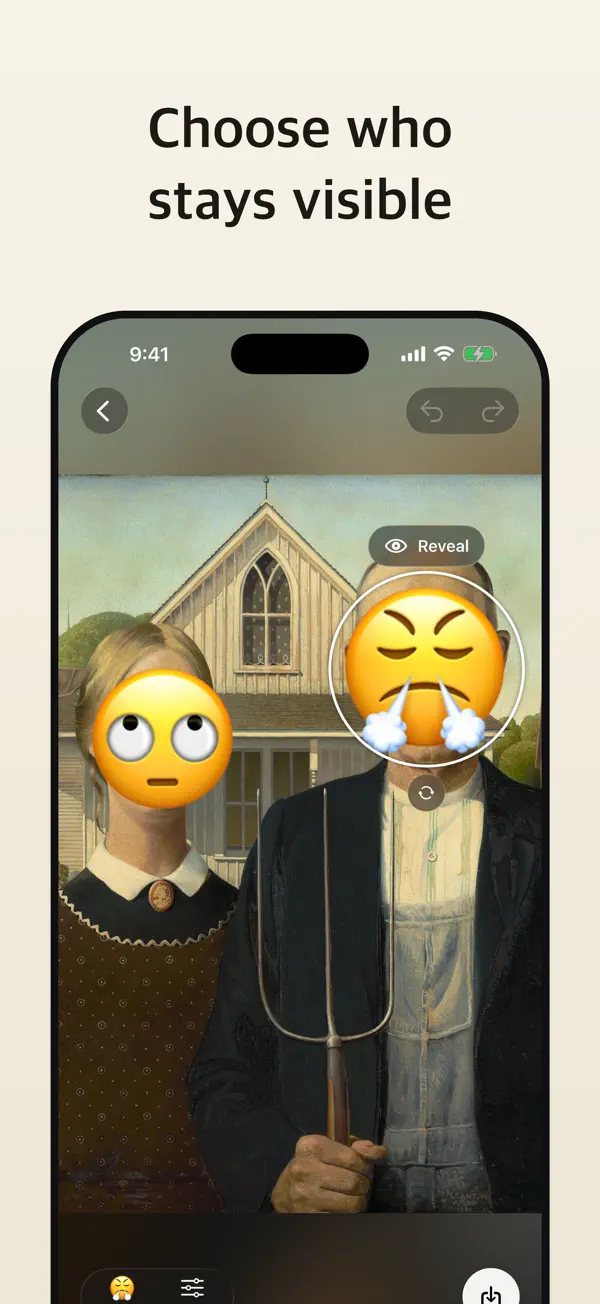
Tap the faces that should stay visible. The rest stay covered. Changed your mind? Tap again to cover that face back up.
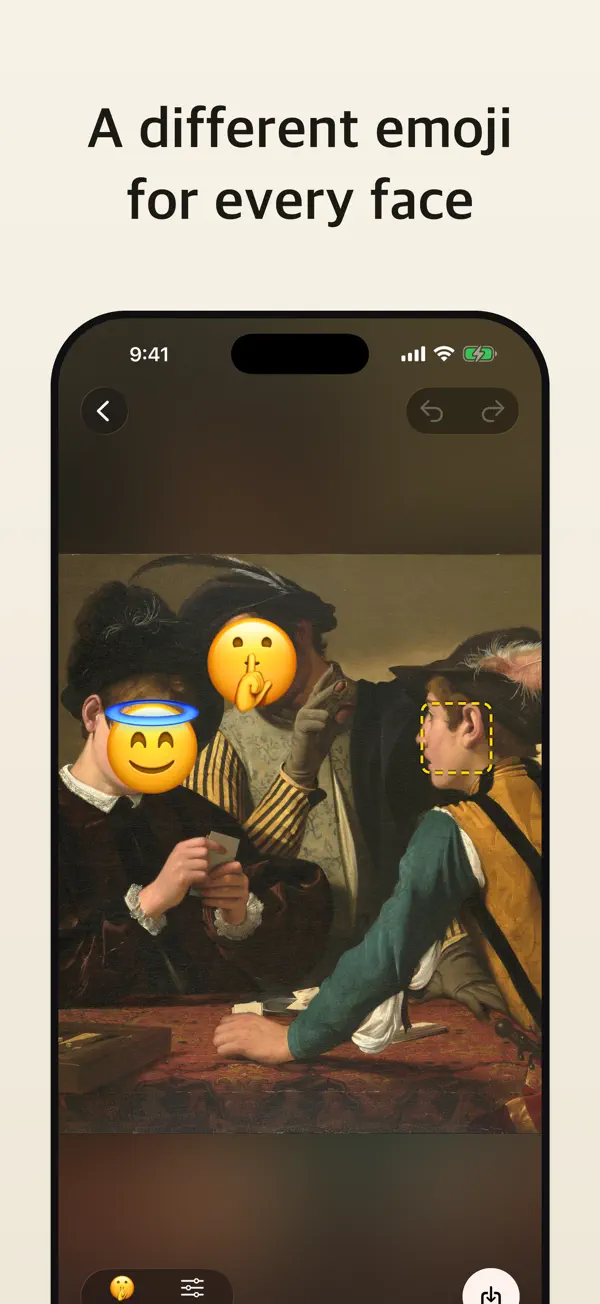
Use a different emoji for every face, or letters instead. Adjust size, color, position and rotation — drag to move it, use the handle to rotate.
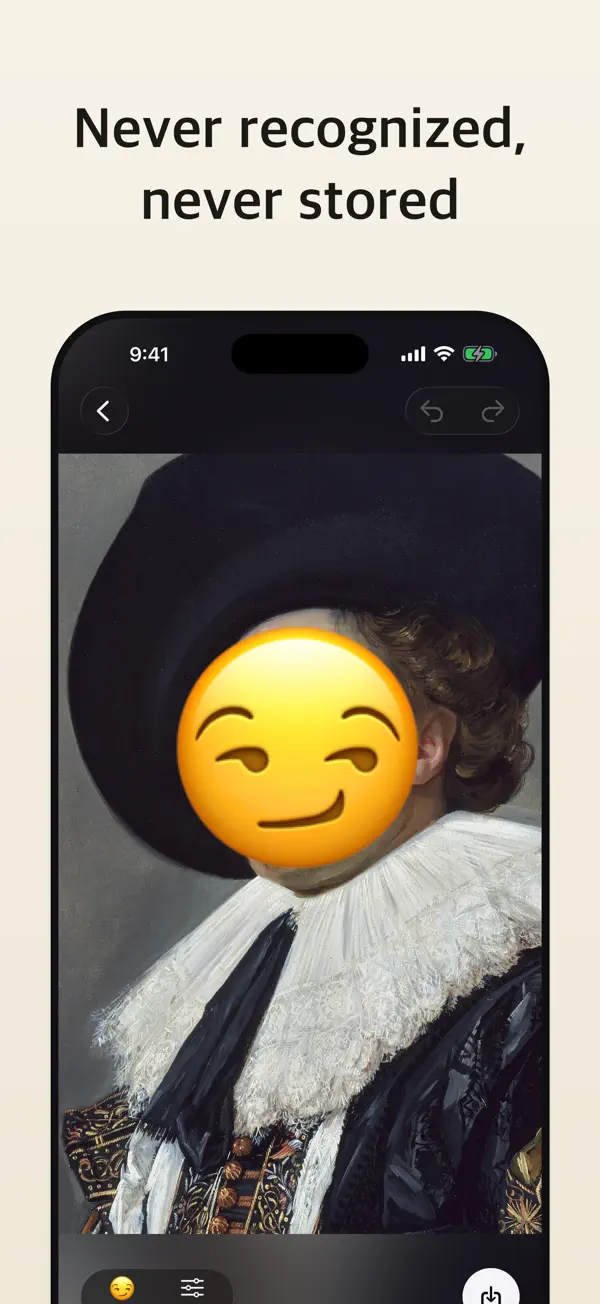
The result is saved to your photo library, and your original photo is never modified. Faces are only detected, never recognized, and everything stays on your iPhone.
Yes. Every face starts covered, and you tap the ones you want to show. Only those are revealed.
Yes. Each face can have its own emoji or letters, with adjustable size, color, position and rotation.
No. MojiMask saves the result as a new file and never modifies the original.
No. It detects where faces are so it can cover them, but never identifies anyone. Face data is never stored or uploaded.

Free on the App Store.